
Freshservice portal accessibility features are built to make IT service management work for everyone on your team, no matter their abilities or how they prefer to interact with tools. If you're managing a Freshservice instance and wondering whether your portal meets accessibility standards, or how to configure accessibility settings to support your diverse workforce, you're in the right place.
The honest truth: most IT teams skip over accessibility configuration entirely. They stick with defaults and hope it works. But when you take time to properly set up Freshservice portal accessibility features, you unlock better adoption rates, higher employee satisfaction, and compliance with Web Content Accessibility Guidelines (WCAG) standards that increasingly matter to enterprise organizations.
Related: Improving Freshservice Portal Engagement Metrics: A Guide
Related: Employee Portal Interface Improvements: A Complete Guide
Related: Best Freshservice Portal Accessibility Customization for Enterprise Teams
Related: Freshservice Portal Customization Services: A Complete Guide
What Are Freshservice Portal Accessibility Features?
Freshservice builds accessibility into both requester and agent portals by design. This means the platform itself is structured to align with WCAG compliance standards, giving your employees with disabilities genuine access to IT service management workflows.
Both portal types (requester-facing and agent-facing) include accessibility considerations in their interface design, navigation, and keyboard support. The platform combines ticket management automation with user-friendly design principles that don't force accessibility as an afterthought.
What this means in practice: your employees can navigate tickets, submit requests, and track service status without struggling through poor contrast, broken keyboard navigation, or unclear layouts. And your IT team can manage these portals with configuration tools that let you customize how accessibility works for your specific organization.
How to Access Freshservice Portal Accessibility Settings
Portal accessibility and configuration options live in one central location. Here's where to find them:
- Log in to your Freshservice admin console
- Navigate to Admin > Global Settings > Account Settings > Portal
- From here, you'll see all portal configuration options
This is your command center for everything portal-related. You'll manage accessibility settings, authentication methods, workspace assignments, and branding customization all from this section.
If you're customizing a portal for the first time, the settings dashboard can feel overwhelming. Ascend Portal Experience specializes in helping teams navigate this exact scenario, translating configuration options into real business improvements.
Want to work together?
Get in Touch →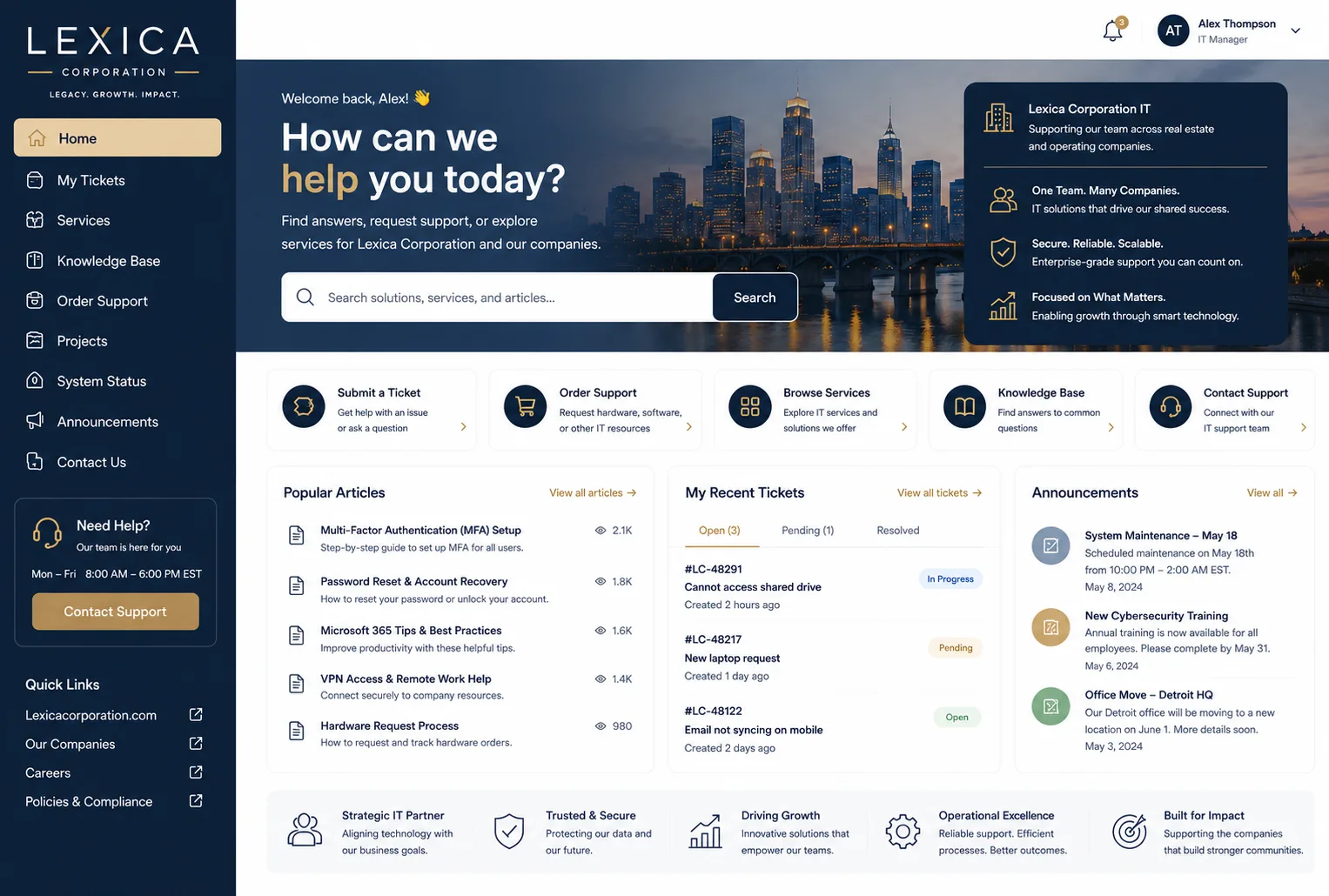
Key Accessibility Features You Can Configure
Authentication Methods
Freshservice lets you configure multiple login methods to accommodate different user accessibility needs. Some employees work better with single sign-on (SSO), others need local credentials, and some benefit from multi-factor authentication designed with accessibility in mind.
You're not locked into one approach. Configure the authentication methods that work best for your workforce and their accessibility requirements.
Workspace Assignment and Granular Control
Not every user needs access to every workspace. Freshservice lets you assign specific workspaces to different user groups, which actually improves accessibility by reducing cognitive load. When employees see only the workflows and ticket categories relevant to them, navigation becomes simpler and less confusing.
This granular control means you can design portal experiences tailored to different departments, roles, or accessibility needs without forcing everyone through the same workflow.
Portal Customization and Branding
Each portal can be customized with your own branding, colors, and layout. While this sounds purely cosmetic, thoughtful branding design is actually part of accessibility strategy. When you apply consistent, high-contrast branding and clear visual hierarchy, you're making the portal easier for people with low vision or color blindness to navigate.
The default Freshservice portal works, but a branded, custom-designed portal works better for everyone.
24/7 Self-Service Availability
Accessibility isn't just about people with disabilities. It's also about when and where your employees can access support. Freshservice portals provide round-the-clock self-service access, meaning employees can submit requests, track tickets, and find knowledge articles at 3am if they need to.
This asynchronous availability supports different work schedules, time zones, and accessibility needs for employees who benefit from having unlimited time to interact with the portal without pressure.
WCAG Compliance and Why It Matters

Web Content Accessibility Guidelines (WCAG) are the international standard for digital accessibility. WCAG standards cover keyboard navigation, screen reader compatibility, color contrast, text alternatives for images, and dozens of other technical requirements.
Freshservice has designed its portals to align with these standards. That means your portal can support:
- Users navigating entirely by keyboard (no mouse required)
- Screen reader users who rely on audio descriptions of interface elements
- Employees with low vision who need high-contrast designs and resizable text
- Users with cognitive disabilities who benefit from clear, predictable navigation patterns
But here's the thing: just because Freshservice builds accessibility into the platform doesn't mean your specific configuration is automatically compliant. You need to intentionally configure and test your portal to ensure accessibility works for your actual users.
Configuration Best Practices for Maximum Accessibility
Start with Your Audience
Before you configure anything, think about who's actually using your portal. Do you have remote employees in different time zones? Employees with known accessibility needs? Employees across multiple departments with different workflow requirements?
Your configuration should serve your actual users, not a generic employee profile.
Test with Real Users
Configure your portal, then test it with actual employees. Include at least one person using a screen reader, one navigating by keyboard only, and one testing on a mobile device. Real-world feedback catches issues that automated accessibility checkers miss.
Keep Navigation Simple
Workspace assignments and role-based access controls aren't just for security. They simplify the interface, which is itself an accessibility improvement. A cluttered portal with dozens of options is harder for everyone to navigate, especially people with cognitive disabilities or low vision.
Document Your Settings
When you configure authentication methods, workspace assignments, or custom branding, write it down. Document why you made each decision. This helps your team understand the portal later and catches inconsistencies before they create accessibility problems.
When to Consider Professional Portal Design
Configuring Freshservice portal accessibility features yourself is absolutely possible. But there's a big difference between a functional portal and a strategic one.
If your portal is still generic, if adoption is lower than you'd expect, or if you're getting feedback that the interface is confusing, you might benefit from professional portal transformation. This is where Ascend Portal Experience comes in. Teams working with Ascend go beyond basic configuration to design portals that actually improve how employees interact with IT services.
The Ascend Professional Portal Package combines accessibility-first design with Freshservice expertise, accessibility compliance validation, and branding strategy to deliver portals that feel intuitive and built for your team.
This isn't about bells and whistles. It's about transforming a generic helpdesk tool into an experience that actually supports how your employees work.
Common Accessibility Mistakes to Avoid

Don't assume default settings are enough. Freshservice builds accessibility in, but your configuration choices matter. If you assign too many workspaces to one user or create confusing navigation flows, you've undone that built-in advantage.
Don't skip testing. Automated accessibility checkers are helpful but incomplete. Real users catch things machines miss.
Don't treat accessibility as a one-time setup task. As your team grows, as new accessibility needs emerge, and as Freshservice releases updates, your portal configuration should evolve. Accessibility is ongoing.
FAQs About Freshservice Portal Accessibility Features
Does Freshservice automatically meet WCAG compliance requirements?
Freshservice designs its portals to align with WCAG standards, which gives you a strong foundation. But your configuration choices matter. A poorly configured portal can create accessibility barriers even if the underlying platform is compliant. Testing your specific portal setup with real users is the only way to confirm actual compliance.
Can I customize accessibility settings separately for different user groups?
Yes. Freshservice's workspace assignment and role-based access controls let you tailor the experience for different groups. You can configure different authentication methods, assign different workspaces, and customize branding to create experiences that serve specific user needs.
What's the difference between requester and agent portal accessibility?
Requester portals are for employees submitting IT tickets and tracking requests. Agent portals are for IT team members managing tickets and providing support. Both include accessibility considerations, but agent portals are more complex because they involve more workflows and configuration options. Both need deliberate accessibility configuration to work well.
How do I know if my Freshservice portal is truly accessible?
Test it with real users, especially people using accessibility tools like screen readers or keyboard-only navigation. Use automated checkers like WAVE or Axe DevTools as a first pass, then validate with human testers. If you're unsure about your configuration, accessibility audits can identify specific gaps in your current setup.