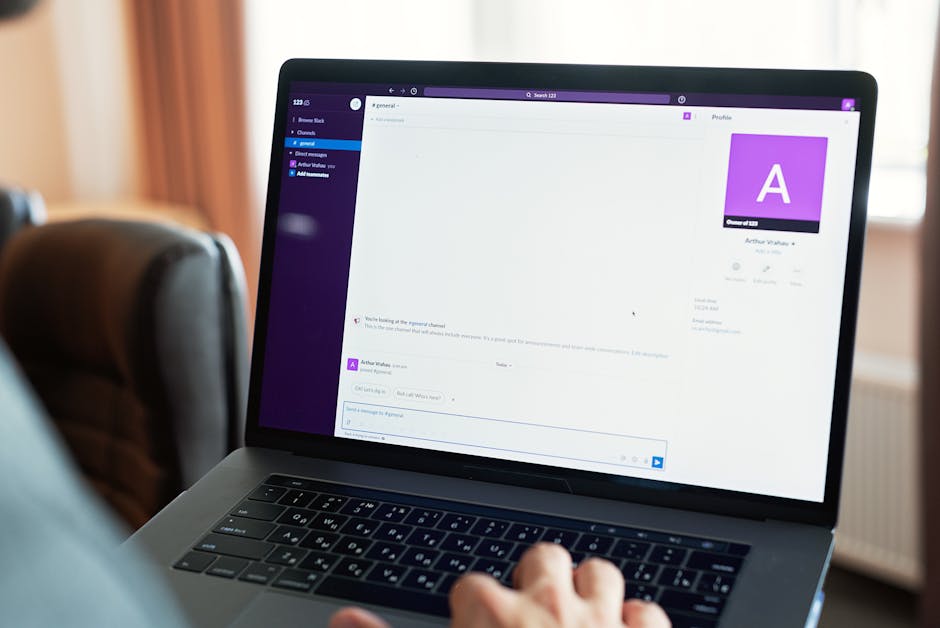
Rebranding your Freshservice helpdesk portal takes about 15 minutes, but the impact on employee adoption can be massive. Here's the honest truth: when your IT support portal looks like every other default setup out there, employees treat it like an afterthought. The moment you add your logo, colors, and company name? Suddenly it feels real. It feels like *yours*.
This guide walks you through exactly how to rebrand your Freshservice portal from start to finish, plus why it matters more than you'd think.
Related: Best Freshservice Portal Navigation Improvements for 2026
Related: Best Vendor Portal for Freshservice ITSM in 2026
Where to Find Freshservice Rebranding Settings
The primary path is simple: head to Admin > Account Settings > Service Desk Rebranding > Customize support portal. That's your main hub for making changes.
If you're managing multiple workspaces or portals, there's also an alternative route: Admin > Portals > Edit portal > Appearance tab. This gives you portal-specific control if different teams or departments need different looks.
The key thing to know? If you're running multiple workspaces, you'll manage branding separately for each one. They don't automatically sync, so plan accordingly.
Step 1: Customize Your Helpdesk Name
First, change the name from the default "Service Desk" to something that makes sense for your organization. This is your chance to make it personal.
Go into Service Desk Settings and enter your desired name. Some companies use "IT Support," others go with "Employee Services Portal" or their company name directly. Pick whatever signals to employees that this is a legitimate, branded resource.
Why does this matter? When your portal has a real name, employees remember it. They talk about it. They tell coworkers where to find help. It transforms the portal from "that IT thing" into a recognized tool.
Step 2: Upload Your Custom Logo
This is where the real visual impact happens. Your logo is the first thing employees see, and it immediately tells them this is a professional, branded environment.
In the same Service Desk Settings section, you'll find the logo upload area. Click it, select your company logo image file, and upload. Freshservice will handle the sizing, but make sure your image is clean and recognizable at smaller sizes.
Pro tip: test how your logo looks at actual portal size before you finalize. What looks great in your email header might need tweaking at 100x100 pixels.
Step 3: Select and Customize Your Theme

Freshservice gives you theme options to choose from. Head to the Appearance tab in your portal settings to see what's available.
Related: How to Increase IT Helpdesk Portal Adoption in 2026
Related: Freshservice Portal UI Improvements: What's New in 2026
Related: Best IT Helpdesk Portal Modernization for Freshservice Users
Related: Branded Helpdesk Portal Best Practices for Freshservice
Related: Best IT Helpdesk Portal Redesign Process for Freshservice
You don't just pick a theme and move on, though. Once you select it, you can customize colors, fonts, and layout elements to match your brand guidelines. This is your chance to make the portal feel consistent with your company's visual identity.
Think of it like this: your theme is the canvas, and your customization is the painting. Spend a few minutes getting the colors right. It matters.
Why Rebranding Your Freshservice Portal Actually Moves the Needle
Here's what most IT teams miss: Ascend Portal Experience works with organizations that realize rebranding isn't cosmetic. It's strategic.
Want to work together?
Get in Touch →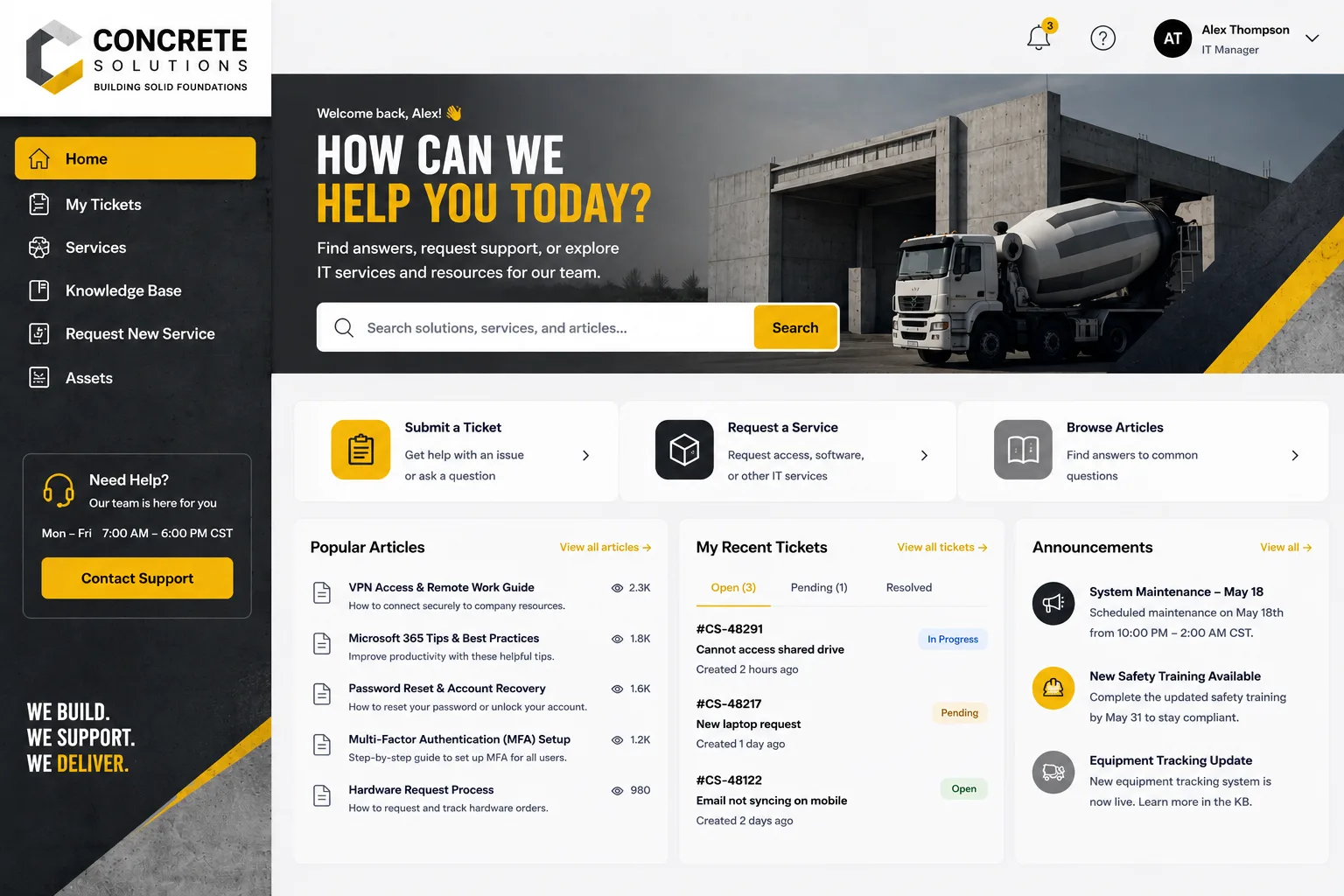
When your Freshservice portal looks professional and branded, three things happen:
- Ticket volume drops. Self-service gets used more because employees actually want to use it. A polished portal feels trustworthy.
- Resolution speed improves. Employees find answers faster when the interface feels intentional, not thrown together.
- IT team efficiency climbs. Fewer tickets coming in means your team can focus on high-impact work instead of fielding basic requests.
According to research from Forrester Research, branded self-service experiences increase user adoption by 40% or more. That's not negligible. That's real business impact.
Consistency Across Multiple Workspaces (If That's You)
If your organization runs multiple Freshservice workspaces, you'll need to manage each portal's branding separately. There's no master setting that applies across all workspaces at once.
So if you have a main helpdesk plus separate portals for HR, facilities, or specific departments, each one gets its own name, logo, and theme. It takes a little extra time, but it's worth it for consistency.
Think of it like this: your employees should feel like they're moving between different departments of *your* company, not jumping between random IT tools.
Going Beyond Basic Rebranding

Once you've nailed the basics (name, logo, theme), there's a bigger conversation to have: is your Freshservice portal really delivering the employee experience your company deserves?
Here's what we've learned working with mid-to-large enterprises: the default Freshservice setup gets you started, but it doesn't get you to "wow." The portal might be functional, but it doesn't feel *premium*. Employees don't get excited about submitting tickets. They don't recommend it to coworkers.
That's where Ascend Portal Experience comes in. We specialize in transforming Freshservice portals from standard setups into branded, user-friendly experiences that actually move adoption metrics. We handle the design, the layout customization, the user flow optimization, and everything in between.
Related: Best Freshservice Portal Optimization for Adoption in 2026
If you're ready to take rebranding further than just uploading a logo, that conversation is worth having.
A Practical Checklist Before You Relaunch
- Test your logo at actual portal size and on different screen sizes (mobile, tablet, desktop)
- Make sure your chosen name is clear and easy to remember
- Verify theme colors match your brand guidelines and are easy to read
- Check that all portal links and navigation work smoothly
- Ask a colleague to review the portal before you roll it out to the whole company
- Plan a soft rollout to a small group first, gather feedback, then expand
Common Rebranding Mistakes to Avoid
Don't overcomplicate it. We see teams try to customize every single element and end up with a cluttered, confusing portal. Stick to name, logo, and theme. That's 90% of the impact for 10% of the effort.
Don't forget mobile users. A third of your employees will access this portal from their phones. Make sure your branding looks good on small screens.
Don't set it and forget it. Review your portal branding once or twice a year. If your company rebrands, your Freshservice portal should reflect that too. It's part of your company's visual identity.
If you're looking for a more comprehensive transformation that goes beyond basic Freshservice rebranding, the Ascend Professional Portal Package delivers fixed-price portal customization with premium design and implementation support built in.
Making It Stick: Next Steps After Rebranding
Once your portal is rebranded, communicate it. Send an email to your team. Show them the new look. Explain how to use it. Make a quick training video if your organization is bigger than 200 people.
The rebranding itself takes 15 minutes. Getting people to actually *use* the rebranded portal takes a bit more intentionality. But it's worth it.
Your Freshservice portal represents your IT team to every employee. Make it count.
Can I rebrand different Freshservice portals with different names and logos?
Yes. If you have multiple portals set up (for different departments or workflows), you can customize each one individually. Go to Admin > Portals > Edit portal, and customize the appearance for each portal separately. This is super helpful if you have dedicated portals for specific teams.
How long does it take to rebrand a Freshservice portal?
The actual rebranding process takes 15-30 minutes. You're uploading a logo, entering a name, and selecting a theme. The bigger time investment is getting stakeholder approval on the branding itself and testing it across different devices before you launch it company-wide.
Will rebranding my Freshservice portal affect our existing tickets or workflows?
No. Rebranding is purely cosmetic. Your tickets, workflows, automation rules, and all your data stay exactly the same. You're just changing how the portal looks and what it's called. Zero risk.
What if we rebrand our company and need to update our Freshservice portal to match?
You'll need to update your logo, name, and potentially your theme colors to align with your new brand identity. It's straightforward: go back into Service Desk Settings and make the changes. Plan to do this at the same time you're rolling out your company rebrand to employees so everything feels cohesive.